1) Integration Manager-To import Masters and Transactional data from excel sheet, Tab Delimited or comma delimited files. Integration Manager can used to import opening balances. It required user interfere but can schedule integration manager.
Microsoft allowed 90 days free use of Integration Manager
2) eConnect- One of the another way to integrated Data into Dynamics GP, required programming experience to used eConnect API. user can do VB,VB.NET or C# coding to use eConnect. Required license for Developer Toolkit to used eConnect.
Pro-eConnect used windows login id that means user need not to be Dynamics GP user.
Cos-Need to install eConnect on every machine where it required to used.
3) Dynamics GP Web Services- Web Services created using behind the screen eConnect API, again user need to have programming experience to create integration utility using web services. Dynamics GP Web Service Management Console offer user level integration rights where it can assigned specific user certain right e.g. to only import purchasing information or Receiving Transaction only.
4) Rapid Implementation Tools- Used to copy existing data from one company to another with all setup information. useful to migrate data from QuickBooks and version 2.0 can migrate from Peachtree.
5) SQL Query (Insert statement)- again need to be very careful need to follow all Dynamics GP logic to run Insert statement against table. Need to verify and populate all related table.. risky process !!!
6) Macro's - Macros can also used to create integration in Dynamics GP and it follow all GP Logic
7) Table Import-Dynamics GP utility that allow to import data from file directly into Dynamics GP table which I don't recommend because if you miss a related table it will be problem or must need to populate those table also or must run checklinks after table import in mostly it created required data in related table.
8) Copy Company Utility-This utility allows you to set up new company from existing company and can import all master records as well as transactional data also.
Do you know any other way to integrate data into Dynamics GP ?
Tuesday, April 27, 2010


Saturday, March 27, 2010
Chage Item Option from "None" to "Lot" or "Serial"
To change Item tracking option from None to Lot Number Item Qty on hand must be zero.
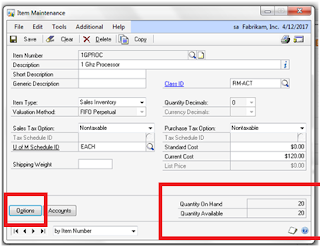
Click on Option


4) Add Adjustment Entry for "On Hand" Qty with Lot information
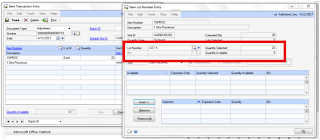

Click on Option

Following steps to change Item tracking option from "None" to "Lot"
1) Create negative Adjustment Entry from Transactions---> Inventory ---> Transaction Entry for those Item you want to change to "lot item"

2) Post Transaction.
3) Goto Item Maintenance-->Option, make Changes in Item Maintenance from None to Lot.
4) Add Adjustment Entry for "On Hand" Qty with Lot information

Thursday, February 11, 2010
Creating Test Company
Several time user want production data in Test company. Once you create Test Company and Restore Production database on Test Company please make sure to cover following two important point.
1) Make sure your test company name will end with "<TEST>" i.e. “MY Dummy Company <TEST>"
Advantage :
a) System will understand this is test company as well as user will get prompt that your login in test company
b) If user create test company and assigned company name without word "<TEST>" and Payroll module is installed system will count total number employees from Production Company + Test Company. But if test company name is created "<TEST>" word it won’t count Employee of test company.
If you are changing existing Test company Name with word "<TEST>" do not forget to run check link on Employee Maintenance to get correct employee count.
Again it’s very small but important "<TEST>" word to avoid all future confusion after creating test company.
2) Run Microsoft SQL Script after restoring Production Data into Test Company its available in KB872370
1) Make sure your test company name will end with "<TEST>" i.e. “MY Dummy Company <TEST>"
Advantage :
a) System will understand this is test company as well as user will get prompt that your login in test company
b) If user create test company and assigned company name without word "<TEST>" and Payroll module is installed system will count total number employees from Production Company + Test Company. But if test company name is created "<TEST>" word it won’t count Employee of test company.
If you are changing existing Test company Name with word "<TEST>" do not forget to run check link on Employee Maintenance to get correct employee count.
Again it’s very small but important "<TEST>" word to avoid all future confusion after creating test company.
2) Run Microsoft SQL Script after restoring Production Data into Test Company its available in KB872370
Sunday, January 17, 2010
Account Alias-Speed up your GL Transaction Entry

Account Alias use to speed up GL Transaction Entry. In above Example “LI-A” alias assigned to Life Insurance - Administration, instead of typing whole Account No user can use Alisa to speed up Journal General Entry (Transactions-->Financial-->General) .

Click on arrow to open Account Entry window Type “LI-A” in Alias field and press tab, as soon as user press tab Alias will recognized Account Number and display same in Transaction Entry screen.

Very small but interesting feature , have you ever used Alias feature before ?
PS: Use Alias feature not only for General Transaction but for entering big Distributions in other Transactions.
Friday, January 15, 2010
Remove Dynamics GP Web Service
Steps to remove Microsoft Dynamics GP Web Services
1. Remove “Adam Instance DynamicsSecurityService” in Add\Remove Programs.
2. In IIS Manager, delete “Dynamics Security Admin Service” Web site.
3. In IIS Manager, delete “DynamicsGPWebServices” and DynamicsSecurityService” virtual directories from the Web site that the Web Services for Microsoft Dynamics GP was installed on.
4. In IIS Manager, delete the “DynamicsSecurityAdminServiceAppPool”, DynamicsSecurityServiceAppPool”, and “GPWebServicesAppPool” application pools.
5. Delete the “Microsoft Dynamics” folder from C:\Program Files\Common Files\Microsoft Shared.
6. Delete “GPWebServices” folder from C:\Program Files\Microsoft Dynamics (This is the default location for Web site files.).
7. Delete “Dynamics GP Web Service Exception Management Console” and “Dynamics Security Console” shortcuts from Administrative Tools program folder.
8. Delete related Registry Keys for Web Services for Microsoft Dynamics GP 9.0.
9. Remove the DynamicsGPWebServices key under HKEY_LOCAL_MACHINE\SOFTWARE\Microsoft\
Run following SQL Script to remove SQL Objects from DYNAMICS as well as Company Database.
Against DYNAMICS DB :
drop view ReqCurrency
drop view ReqCurrencyAccess
drop table WSErrorProperties
drop table WSExceptionLog
drop table WSInstallStatus
drop table WSInstallSteps
drop procedure ws_delete_WSExceptionLog
drop procedure ws_deleteall_WSExceptionLog
drop procedure ws_get_MC40200
drop procedure ws_get_SY01500
drop procedure ws_get_WSErrorProperties
drop procedure ws_get_WSExceptionLog
drop procedure ws_get_WSExceptionLog_Summary
drop procedure ws_get_WSExceptionLog_ValidationException
drop procedure ws_get_WSInstallStatus
drop procedure ws_getall_WSInstallStatus
drop procedure ws_insert_WSExceptionLog
delete eConnect_Out_Setup where DOCTYPE in('WSCompany', 'WSCurrency', 'WSCurrencyAccess')
Run following sql script against all Company Database
drop view ReqCurrencyPostingAccountView
drop view ReqGLAcct
drop view ReqGLFixedAllocAcct
drop view ReqGLFixedAllocDistAcct
drop view ReqGLHeaderView
drop view ReqGLLineView
drop view ReqGLPostingAcct
drop view ReqGLPostingAcctCurrencies
drop view ReqGLUnitAcct
drop view ReqGLVarAllocAcct
drop view ReqGLVarAllocDistAcct
drop view ReqGLVarAllocDistBreakAcct
drop view ReqIVFee
drop view ReqIVHeaderView
drop view ReqIVItemCurrency
drop view ReqIVItemHeader
drop view ReqIVItemQuantity
drop view ReqIVItemQuantityBinDetail
drop view ReqIVItemVendor
drop view ReqIVItemWarehouse
drop view ReqIVKit
drop view ReqIVKitComponent
drop view ReqIVLineBinDetailView
drop view ReqIVLineLotDetailView
drop view ReqIVLineSerialDetailView
drop view ReqIVLineView
drop view ReqIVPricing
drop view ReqIVPricingDetail
drop view ReqIVSalesItem
drop view ReqIVService
drop view ReqPAAccounts
drop view ReqPAChangeOrderHeader
drop view ReqPAContractHeader
drop view ReqPAEmpExpDist
drop view ReqPAEmpExpHeader
drop view ReqPAEmpExpLine
drop view ReqPAEmpExpLineTax
drop view ReqPAMiscLog
drop view ReqPAMiscLogDist
drop view ReqPAMiscLogLines
drop view ReqPAProjectBudgetHeader
drop view ReqPAProjectHeader
drop view ReqPATimesheetDist
drop view ReqPATimesheetHeader
drop view ReqPATimesheetLine
drop view ReqPaymentCard
drop view ReqPMHeaderDistView
drop view ReqPMHeaderTaxView
drop view ReqPMHeaderView
drop view ReqPMVendor
drop view ReqPMVendorInetAddress
drop view ReqPMVendorPAOptions
drop view ReqPOHeaderFreightTaxView
drop view ReqPOHeaderMiscTaxView
drop view ReqPOHeaderTaxView
drop view ReqPOHeaderView
drop view ReqPOLineTaxView
drop view ReqPOLineView
drop view ReqPurInvDistView
drop view ReqPurInvHeaderFreightTaxView
drop view ReqPurInvHeaderMiscTaxView
drop view ReqPurInvHeaderTaxView
drop view ReqPurInvHeaderView
drop view ReqPurInvLineApplyRecptView
drop view ReqPurInvLineTaxView
drop view ReqPurInvLineView
drop view ReqPurRecptDist
drop view ReqPurRecptHeader
drop view ReqPurRecptLine
drop view ReqPurRecptLineBin
drop view ReqPurRecptLineLotNum
drop view ReqPurRecptLineSerNum
drop view ReqRecvDocComm
drop view ReqRecvDocDist
drop view ReqRecvDocHeader
drop view ReqRecvDocTax
drop view ReqRMCashReceiptDist
drop view ReqRMCashReceiptHeader
drop view ReqRMCorporateAccount
drop view ReqRMCustomer
drop view ReqRMCustomerAddress
drop view ReqRMCustomerInetAddress
drop view ReqRMSalesPersonCommisionsView
drop view ReqRMSalespersonInetAddress
drop view ReqSODistributionView
drop view ReqSOHeaderFreightTaxView
drop view ReqSOHeaderMiscTaxView
drop view ReqSOHeaderTaxView
drop view ReqSOHeaderView
drop view ReqSOLineComponentView
drop view ReqSOLineTaxView
drop view ReqSOLineView
drop view ReqSOLotDetailView
drop view ReqSOSerialDetailView
drop table WSPolicyBehaviorSelectionParameter
drop table WSPolicyBehaviorSelection
drop table WSPolicyBehavior
drop table WSPolicy
drop table WSParameter
drop table WSBehaviorOption
drop table WSBehavior
drop procedure ws_delete_WSBehavior
drop procedure ws_delete_WSBehaviorOption
drop procedure ws_delete_WSParameter
drop procedure ws_delete_WSPolicy
drop procedure ws_delete_WSPolicyBehavior
drop procedure ws_delete_WSPolicyBehaviorSelection
drop procedure ws_delete_WSPolicyBehaviorSelectionParameter
drop procedure ws_get_Behavior
drop procedure ws_get_MC40000
drop procedure ws_get_Policy
drop procedure ws_get_PolicyByOperation
drop procedure ws_get_PolicyNoDefaulting
drop procedure ws_get_SY00300
drop procedure ws_insert_WSBehavior
drop procedure ws_insert_WSBehaviorOption
drop procedure ws_insert_WSParameter
drop procedure ws_insert_WSPolicy
drop procedure ws_insert_WSPolicyBehavior
drop procedure ws_insert_WSPolicyBehaviorSelection
drop procedure ws_insert_WSPolicyBehaviorSelectionParameter
drop procedure ws_update_WSPolicyBehaviorSelection
drop procedure ws_update_WSPolicyBehaviorSelectionParameter
delete eConnect_Out_Setup where DOCTYPE = 'WSBank'
delete eConnect_Out_Setup where DOCTYPE = 'WSCashReceipt'
delete eConnect_Out_Setup where DOCTYPE = 'WSCompanyAddress'
delete eConnect_Out_Setup where DOCTYPE = 'WSCorporateAccount'
delete eConnect_Out_Setup where DOCTYPE = 'WSCountryRegionCode'
delete eConnect_Out_Setup where DOCTYPE = 'WSCurrencyPostingAccount'
delete eConnect_Out_Setup where DOCTYPE = 'WSCustomer'
delete eConnect_Out_Setup where DOCTYPE = 'WSCustomerAddress'
delete eConnect_Out_Setup where DOCTYPE = 'WSFee'
delete eConnect_Out_Setup where DOCTYPE = 'WSGLAccount'
delete eConnect_Out_Setup where DOCTYPE = 'WSGLAccountCategory'
delete eConnect_Out_Setup where DOCTYPE = 'WSGLAccountFormat'
delete eConnect_Out_Setup where DOCTYPE = 'WSGLFixedAllocationAccount'
delete eConnect_Out_Setup where DOCTYPE = 'WSGLPostingAccount'
delete eConnect_Out_Setup where DOCTYPE = 'WSGLTransaction'
delete eConnect_Out_Setup where DOCTYPE = 'WSGLUnitAccount'
delete eConnect_Out_Setup where DOCTYPE = 'WSGLVariableAllocationAccount'
delete eConnect_Out_Setup where DOCTYPE = 'WSInventoriedItem'
delete eConnect_Out_Setup where DOCTYPE = 'WSInventoryAdjustment'
delete eConnect_Out_Setup where DOCTYPE = 'WSInventoryTransfer'
delete eConnect_Out_Setup where DOCTYPE = 'WSInventoryVariance'
delete eConnect_Out_Setup where DOCTYPE = 'WSItem'
delete eConnect_Out_Setup where DOCTYPE = 'WSItemClass'
delete eConnect_Out_Setup where DOCTYPE = 'WSItemCurrency'
delete eConnect_Out_Setup where DOCTYPE = 'WSItemVendor'
delete eConnect_Out_Setup where DOCTYPE = 'WSItemWarehouse'
delete eConnect_Out_Setup where DOCTYPE = 'WSKit'
delete eConnect_Out_Setup where DOCTYPE = 'WSMulticurrencySetup'
delete eConnect_Out_Setup where DOCTYPE = 'WSPayablesCreditMemo'
delete eConnect_Out_Setup where DOCTYPE = 'WSPayablesDocument'
delete eConnect_Out_Setup where DOCTYPE = 'WSPayablesFinanceCharge'
delete eConnect_Out_Setup where DOCTYPE = 'WSPayablesInvoice'
delete eConnect_Out_Setup where DOCTYPE = 'WSPayablesMiscellaneousCharge'
delete eConnect_Out_Setup where DOCTYPE = 'WSPayablesReturn'
delete eConnect_Out_Setup where DOCTYPE = 'WSPaymentCardType'
delete eConnect_Out_Setup where DOCTYPE = 'WSPaymentTerms'
delete eConnect_Out_Setup where DOCTYPE = 'WSPriceLevel'
delete eConnect_Out_Setup where DOCTYPE = 'WSPricing'
delete eConnect_Out_Setup where DOCTYPE = 'WSProject'
delete eConnect_Out_Setup where DOCTYPE = 'WSProjectBudget'
delete eConnect_Out_Setup where DOCTYPE = 'WSProjectChangeOrder'
delete eConnect_Out_Setup where DOCTYPE = 'WSProjectContract'
delete eConnect_Out_Setup where DOCTYPE = 'WSProjectEmployeeExpense'
delete eConnect_Out_Setup where DOCTYPE = 'WSProjectMiscellaneousLog'
delete eConnect_Out_Setup where DOCTYPE = 'WSProjectTimesheet'
delete eConnect_Out_Setup where DOCTYPE = 'WSPurchaseInvoice'
delete eConnect_Out_Setup where DOCTYPE = 'WSPurchaseOrder'
delete eConnect_Out_Setup where DOCTYPE = 'WSPurchaseReceipt'
delete eConnect_Out_Setup where DOCTYPE = 'WSReceivablesCreditMemo'
delete eConnect_Out_Setup where DOCTYPE = 'WSReceivablesDebitMemo'
delete eConnect_Out_Setup where DOCTYPE = 'WSReceivablesDocument'
delete eConnect_Out_Setup where DOCTYPE = 'WSReceivablesFinanceCharge'
delete eConnect_Out_Setup where DOCTYPE = 'WSReceivablesInvoice'
delete eConnect_Out_Setup where DOCTYPE = 'WSReceivablesReturn'
delete eConnect_Out_Setup where DOCTYPE = 'WSReceivablesServiceRepair'
delete eConnect_Out_Setup where DOCTYPE = 'WSReceivablesWarranty'
delete eConnect_Out_Setup where DOCTYPE = 'WSSalesBackorder'
delete eConnect_Out_Setup where DOCTYPE = 'WSSalesDocument'
delete eConnect_Out_Setup where DOCTYPE = 'WSSalesDocumentTypeSetup'
delete eConnect_Out_Setup where DOCTYPE = 'WSSalesFulfillmentOrder'
delete eConnect_Out_Setup where DOCTYPE = 'WSSalesInvoice'
delete eConnect_Out_Setup where DOCTYPE = 'WSSalesItem'
delete eConnect_Out_Setup where DOCTYPE = 'WSSalesOrder'
delete eConnect_Out_Setup where DOCTYPE = 'WSSalesperson'
delete eConnect_Out_Setup where DOCTYPE = 'WSSalespersonCommissions'
delete eConnect_Out_Setup where DOCTYPE = 'WSSalesProcessHoldSetup'
delete eConnect_Out_Setup where DOCTYPE = 'WSSalesQuote'
delete eConnect_Out_Setup where DOCTYPE = 'WSSalesReturn'
delete eConnect_Out_Setup where DOCTYPE = 'WSSalesSetup'
delete eConnect_Out_Setup where DOCTYPE = 'WSSalesTerritory'
delete eConnect_Out_Setup where DOCTYPE = 'WSService'
delete eConnect_Out_Setup where DOCTYPE = 'WSShippingMethod'
delete eConnect_Out_Setup where DOCTYPE = 'WSUofMSchedule'
delete eConnect_Out_Setup where DOCTYPE = 'WSVendor'
delete eConnect_Out_Setup where DOCTYPE = 'WSVendorAddress'
delete eConnect_Out_Setup where DOCTYPE = 'WSWarehouse'
1. Remove “Adam Instance DynamicsSecurityService” in Add\Remove Programs.
2. In IIS Manager, delete “Dynamics Security Admin Service” Web site.
3. In IIS Manager, delete “DynamicsGPWebServices” and DynamicsSecurityService” virtual directories from the Web site that the Web Services for Microsoft Dynamics GP was installed on.
4. In IIS Manager, delete the “DynamicsSecurityAdminServiceAppPool”, DynamicsSecurityServiceAppPool”, and “GPWebServicesAppPool” application pools.
5. Delete the “Microsoft Dynamics” folder from C:\Program Files\Common Files\Microsoft Shared.
6. Delete “GPWebServices” folder from C:\Program Files\Microsoft Dynamics (This is the default location for Web site files.).
7. Delete “Dynamics GP Web Service Exception Management Console” and “Dynamics Security Console” shortcuts from Administrative Tools program folder.
8. Delete related Registry Keys for Web Services for Microsoft Dynamics GP 9.0.
9. Remove the DynamicsGPWebServices key under HKEY_LOCAL_MACHINE\SOFTWARE\Microsoft\
Run following SQL Script to remove SQL Objects from DYNAMICS as well as Company Database.
Against DYNAMICS DB :
drop view ReqCurrency
drop view ReqCurrencyAccess
drop table WSErrorProperties
drop table WSExceptionLog
drop table WSInstallStatus
drop table WSInstallSteps
drop procedure ws_delete_WSExceptionLog
drop procedure ws_deleteall_WSExceptionLog
drop procedure ws_get_MC40200
drop procedure ws_get_SY01500
drop procedure ws_get_WSErrorProperties
drop procedure ws_get_WSExceptionLog
drop procedure ws_get_WSExceptionLog_Summary
drop procedure ws_get_WSExceptionLog_ValidationException
drop procedure ws_get_WSInstallStatus
drop procedure ws_getall_WSInstallStatus
drop procedure ws_insert_WSExceptionLog
delete eConnect_Out_Setup where DOCTYPE in('WSCompany', 'WSCurrency', 'WSCurrencyAccess')
Run following sql script against all Company Database
drop view ReqCurrencyPostingAccountView
drop view ReqGLAcct
drop view ReqGLFixedAllocAcct
drop view ReqGLFixedAllocDistAcct
drop view ReqGLHeaderView
drop view ReqGLLineView
drop view ReqGLPostingAcct
drop view ReqGLPostingAcctCurrencies
drop view ReqGLUnitAcct
drop view ReqGLVarAllocAcct
drop view ReqGLVarAllocDistAcct
drop view ReqGLVarAllocDistBreakAcct
drop view ReqIVFee
drop view ReqIVHeaderView
drop view ReqIVItemCurrency
drop view ReqIVItemHeader
drop view ReqIVItemQuantity
drop view ReqIVItemQuantityBinDetail
drop view ReqIVItemVendor
drop view ReqIVItemWarehouse
drop view ReqIVKit
drop view ReqIVKitComponent
drop view ReqIVLineBinDetailView
drop view ReqIVLineLotDetailView
drop view ReqIVLineSerialDetailView
drop view ReqIVLineView
drop view ReqIVPricing
drop view ReqIVPricingDetail
drop view ReqIVSalesItem
drop view ReqIVService
drop view ReqPAAccounts
drop view ReqPAChangeOrderHeader
drop view ReqPAContractHeader
drop view ReqPAEmpExpDist
drop view ReqPAEmpExpHeader
drop view ReqPAEmpExpLine
drop view ReqPAEmpExpLineTax
drop view ReqPAMiscLog
drop view ReqPAMiscLogDist
drop view ReqPAMiscLogLines
drop view ReqPAProjectBudgetHeader
drop view ReqPAProjectHeader
drop view ReqPATimesheetDist
drop view ReqPATimesheetHeader
drop view ReqPATimesheetLine
drop view ReqPaymentCard
drop view ReqPMHeaderDistView
drop view ReqPMHeaderTaxView
drop view ReqPMHeaderView
drop view ReqPMVendor
drop view ReqPMVendorInetAddress
drop view ReqPMVendorPAOptions
drop view ReqPOHeaderFreightTaxView
drop view ReqPOHeaderMiscTaxView
drop view ReqPOHeaderTaxView
drop view ReqPOHeaderView
drop view ReqPOLineTaxView
drop view ReqPOLineView
drop view ReqPurInvDistView
drop view ReqPurInvHeaderFreightTaxView
drop view ReqPurInvHeaderMiscTaxView
drop view ReqPurInvHeaderTaxView
drop view ReqPurInvHeaderView
drop view ReqPurInvLineApplyRecptView
drop view ReqPurInvLineTaxView
drop view ReqPurInvLineView
drop view ReqPurRecptDist
drop view ReqPurRecptHeader
drop view ReqPurRecptLine
drop view ReqPurRecptLineBin
drop view ReqPurRecptLineLotNum
drop view ReqPurRecptLineSerNum
drop view ReqRecvDocComm
drop view ReqRecvDocDist
drop view ReqRecvDocHeader
drop view ReqRecvDocTax
drop view ReqRMCashReceiptDist
drop view ReqRMCashReceiptHeader
drop view ReqRMCorporateAccount
drop view ReqRMCustomer
drop view ReqRMCustomerAddress
drop view ReqRMCustomerInetAddress
drop view ReqRMSalesPersonCommisionsView
drop view ReqRMSalespersonInetAddress
drop view ReqSODistributionView
drop view ReqSOHeaderFreightTaxView
drop view ReqSOHeaderMiscTaxView
drop view ReqSOHeaderTaxView
drop view ReqSOHeaderView
drop view ReqSOLineComponentView
drop view ReqSOLineTaxView
drop view ReqSOLineView
drop view ReqSOLotDetailView
drop view ReqSOSerialDetailView
drop table WSPolicyBehaviorSelectionParameter
drop table WSPolicyBehaviorSelection
drop table WSPolicyBehavior
drop table WSPolicy
drop table WSParameter
drop table WSBehaviorOption
drop table WSBehavior
drop procedure ws_delete_WSBehavior
drop procedure ws_delete_WSBehaviorOption
drop procedure ws_delete_WSParameter
drop procedure ws_delete_WSPolicy
drop procedure ws_delete_WSPolicyBehavior
drop procedure ws_delete_WSPolicyBehaviorSelection
drop procedure ws_delete_WSPolicyBehaviorSelectionParameter
drop procedure ws_get_Behavior
drop procedure ws_get_MC40000
drop procedure ws_get_Policy
drop procedure ws_get_PolicyByOperation
drop procedure ws_get_PolicyNoDefaulting
drop procedure ws_get_SY00300
drop procedure ws_insert_WSBehavior
drop procedure ws_insert_WSBehaviorOption
drop procedure ws_insert_WSParameter
drop procedure ws_insert_WSPolicy
drop procedure ws_insert_WSPolicyBehavior
drop procedure ws_insert_WSPolicyBehaviorSelection
drop procedure ws_insert_WSPolicyBehaviorSelectionParameter
drop procedure ws_update_WSPolicyBehaviorSelection
drop procedure ws_update_WSPolicyBehaviorSelectionParameter
delete eConnect_Out_Setup where DOCTYPE = 'WSBank'
delete eConnect_Out_Setup where DOCTYPE = 'WSCashReceipt'
delete eConnect_Out_Setup where DOCTYPE = 'WSCompanyAddress'
delete eConnect_Out_Setup where DOCTYPE = 'WSCorporateAccount'
delete eConnect_Out_Setup where DOCTYPE = 'WSCountryRegionCode'
delete eConnect_Out_Setup where DOCTYPE = 'WSCurrencyPostingAccount'
delete eConnect_Out_Setup where DOCTYPE = 'WSCustomer'
delete eConnect_Out_Setup where DOCTYPE = 'WSCustomerAddress'
delete eConnect_Out_Setup where DOCTYPE = 'WSFee'
delete eConnect_Out_Setup where DOCTYPE = 'WSGLAccount'
delete eConnect_Out_Setup where DOCTYPE = 'WSGLAccountCategory'
delete eConnect_Out_Setup where DOCTYPE = 'WSGLAccountFormat'
delete eConnect_Out_Setup where DOCTYPE = 'WSGLFixedAllocationAccount'
delete eConnect_Out_Setup where DOCTYPE = 'WSGLPostingAccount'
delete eConnect_Out_Setup where DOCTYPE = 'WSGLTransaction'
delete eConnect_Out_Setup where DOCTYPE = 'WSGLUnitAccount'
delete eConnect_Out_Setup where DOCTYPE = 'WSGLVariableAllocationAccount'
delete eConnect_Out_Setup where DOCTYPE = 'WSInventoriedItem'
delete eConnect_Out_Setup where DOCTYPE = 'WSInventoryAdjustment'
delete eConnect_Out_Setup where DOCTYPE = 'WSInventoryTransfer'
delete eConnect_Out_Setup where DOCTYPE = 'WSInventoryVariance'
delete eConnect_Out_Setup where DOCTYPE = 'WSItem'
delete eConnect_Out_Setup where DOCTYPE = 'WSItemClass'
delete eConnect_Out_Setup where DOCTYPE = 'WSItemCurrency'
delete eConnect_Out_Setup where DOCTYPE = 'WSItemVendor'
delete eConnect_Out_Setup where DOCTYPE = 'WSItemWarehouse'
delete eConnect_Out_Setup where DOCTYPE = 'WSKit'
delete eConnect_Out_Setup where DOCTYPE = 'WSMulticurrencySetup'
delete eConnect_Out_Setup where DOCTYPE = 'WSPayablesCreditMemo'
delete eConnect_Out_Setup where DOCTYPE = 'WSPayablesDocument'
delete eConnect_Out_Setup where DOCTYPE = 'WSPayablesFinanceCharge'
delete eConnect_Out_Setup where DOCTYPE = 'WSPayablesInvoice'
delete eConnect_Out_Setup where DOCTYPE = 'WSPayablesMiscellaneousCharge'
delete eConnect_Out_Setup where DOCTYPE = 'WSPayablesReturn'
delete eConnect_Out_Setup where DOCTYPE = 'WSPaymentCardType'
delete eConnect_Out_Setup where DOCTYPE = 'WSPaymentTerms'
delete eConnect_Out_Setup where DOCTYPE = 'WSPriceLevel'
delete eConnect_Out_Setup where DOCTYPE = 'WSPricing'
delete eConnect_Out_Setup where DOCTYPE = 'WSProject'
delete eConnect_Out_Setup where DOCTYPE = 'WSProjectBudget'
delete eConnect_Out_Setup where DOCTYPE = 'WSProjectChangeOrder'
delete eConnect_Out_Setup where DOCTYPE = 'WSProjectContract'
delete eConnect_Out_Setup where DOCTYPE = 'WSProjectEmployeeExpense'
delete eConnect_Out_Setup where DOCTYPE = 'WSProjectMiscellaneousLog'
delete eConnect_Out_Setup where DOCTYPE = 'WSProjectTimesheet'
delete eConnect_Out_Setup where DOCTYPE = 'WSPurchaseInvoice'
delete eConnect_Out_Setup where DOCTYPE = 'WSPurchaseOrder'
delete eConnect_Out_Setup where DOCTYPE = 'WSPurchaseReceipt'
delete eConnect_Out_Setup where DOCTYPE = 'WSReceivablesCreditMemo'
delete eConnect_Out_Setup where DOCTYPE = 'WSReceivablesDebitMemo'
delete eConnect_Out_Setup where DOCTYPE = 'WSReceivablesDocument'
delete eConnect_Out_Setup where DOCTYPE = 'WSReceivablesFinanceCharge'
delete eConnect_Out_Setup where DOCTYPE = 'WSReceivablesInvoice'
delete eConnect_Out_Setup where DOCTYPE = 'WSReceivablesReturn'
delete eConnect_Out_Setup where DOCTYPE = 'WSReceivablesServiceRepair'
delete eConnect_Out_Setup where DOCTYPE = 'WSReceivablesWarranty'
delete eConnect_Out_Setup where DOCTYPE = 'WSSalesBackorder'
delete eConnect_Out_Setup where DOCTYPE = 'WSSalesDocument'
delete eConnect_Out_Setup where DOCTYPE = 'WSSalesDocumentTypeSetup'
delete eConnect_Out_Setup where DOCTYPE = 'WSSalesFulfillmentOrder'
delete eConnect_Out_Setup where DOCTYPE = 'WSSalesInvoice'
delete eConnect_Out_Setup where DOCTYPE = 'WSSalesItem'
delete eConnect_Out_Setup where DOCTYPE = 'WSSalesOrder'
delete eConnect_Out_Setup where DOCTYPE = 'WSSalesperson'
delete eConnect_Out_Setup where DOCTYPE = 'WSSalespersonCommissions'
delete eConnect_Out_Setup where DOCTYPE = 'WSSalesProcessHoldSetup'
delete eConnect_Out_Setup where DOCTYPE = 'WSSalesQuote'
delete eConnect_Out_Setup where DOCTYPE = 'WSSalesReturn'
delete eConnect_Out_Setup where DOCTYPE = 'WSSalesSetup'
delete eConnect_Out_Setup where DOCTYPE = 'WSSalesTerritory'
delete eConnect_Out_Setup where DOCTYPE = 'WSService'
delete eConnect_Out_Setup where DOCTYPE = 'WSShippingMethod'
delete eConnect_Out_Setup where DOCTYPE = 'WSUofMSchedule'
delete eConnect_Out_Setup where DOCTYPE = 'WSVendor'
delete eConnect_Out_Setup where DOCTYPE = 'WSVendorAddress'
delete eConnect_Out_Setup where DOCTYPE = 'WSWarehouse'
Tuesday, January 5, 2010
Dynamics GP Web Service Installation Error
Dynamics GP Web Service Installation Error troubleshooting.
1) Uninstalled Completely Dynamics GP Web Services.
2) Remove ADAM instance prior to the reinstall of GP WebService
3) Make sure eConnect is not installed on Dynamics Database server before installing Dynamics GP Web Service. If eConnect is installed Uninstalled eConnect with all SQL objects.
4) Run following SQL Script to verify Dynamics GP Database is exist in SQL Server or not
a. Select CMPANYID,CMPNYNAM,INTERID from Dynamics..SY01500
b. Select * from Dynamics..DB_Upgrade
c. Select * from Dynamics..DU000020 order by companyID
5) DB_Upgrade will show if any company is not with Current Version and SP.
6) If you found any discrepancy in physically available Dynamics GP Company Database in SQL and Select Statement in “SY01500” run clearcompanies sql script from Microsoft, Download from KB973027 (Point No : 4)
If you found any discrepancy in Version please upgrade company or if you don’t want those company drop Company DB and run above script to clear company from system table.
7) Verify ISO code enter or not with following script or Login to Dynamics GP and Enter ISO code to all Currency follow Microsoft Dynamics GP Web service Installation document for ISO Code.
Run the following script against each company that is running in Dynamics:
select CURNCYID, CURRNIDX, ISOCURRC from DYNAMICS..MC40200
go
select FUNLCURR, FUNCRIDX from MC40000
Most important in ISO code make sure it 3 Digit ISO Code for each currency.
8) Once you've finished removing Web Services, verify that you are logged onto the IIS Server as a domain account with these permissions:
a) Use Domain Account is SQL Server is on a different machine than IIS server.
b) Local Administrator permission on both the IIS and SQL Servers.
c) Rights to create objects in SQL Server. I usually recomment the dbCreator and SecurityAdmin SQL Role if not sysadmin
d) Also Make sure this Domain Account user has the DYNGRP and public role permission for "DYNAMICS" and all of your GP Company Databases. DYGRP will give Domain Account user the Select, Insert , Delete and Update permission needed to update Dynamics GP Database.
e) Create anew WebSite in IIS Manager to install Web Services. I would recommend using a New Site Name and New Port Number if possible.
9) Run Installation file with following command it will help to create log if it show any installation error.
msiexec.exe/i "C:\Path\DynamicsGPWebServices.msi"/l*v C:\WSVerbose.log"
*****replace Path with the actual pathname to the DynamicsGPWebServices.msi file, in which you're using to start the install*****Hope it will help you to resolve issue. Do not forget to go through Log file it will help you to understand issue.
Tuesday, December 29, 2009
Account Rollup, Summaries Group of Account
How to monitor total of Group of Accounts say Cash A/c, Inventory or Payroll Account from different department, Account Rollup features in Dynamics GP is good option to create summary total of group of Accounts.
Following steps to create Account Rollup inquiry.
1) Goto--->Inquiry--->Financial-->Account Rollup

2) Click on Modify button

3) Enter Option ID
4) Select Segment for sorting option
5) Enter No of Columns in above example I selected 2 Columns one is for Actual and another for budget . Give column Name like “Actual” and “Budget”.
How to create Calculated Columns please go through with Dynamics GP Help.
6) Select option for Accounts i.e. Accounts is Posting Account or Unit Account
7) Select Range of Accounts and insert.
8) Save Accounts Rollup Inquiry options
9) User can callback Option Id from same screen and click on Inquiry Button or
Goto -->Inquiry-->Financial-->Account Rollup
Recall Option ID and Click on Redisplay

Keep checking for my next post.. Happy Holidays !!!
Following steps to create Account Rollup inquiry.
1) Goto--->Inquiry--->Financial-->Account Rollup

2) Click on Modify button

3) Enter Option ID
4) Select Segment for sorting option
5) Enter No of Columns in above example I selected 2 Columns one is for Actual and another for budget . Give column Name like “Actual” and “Budget”.
How to create Calculated Columns please go through with Dynamics GP Help.
6) Select option for Accounts i.e. Accounts is Posting Account or Unit Account
7) Select Range of Accounts and insert.
8) Save Accounts Rollup Inquiry options
9) User can callback Option Id from same screen and click on Inquiry Button or
Goto -->Inquiry-->Financial-->Account Rollup
Recall Option ID and Click on Redisplay

Keep checking for my next post.. Happy Holidays !!!
Subscribe to:
Posts (Atom)